Second Life: --:--:-- SLT Votre heure locale: --:--:-- Visites totales: 2,068 Visites aujourd’hui: 23 Real visitors: 2,118 En ligne: 29
HorseMonitor HorseMonitor
Guest
Guest 🌐 HorseMonitor Visitor Guest visitor
No public social links configured yet.

HorseMonitor Support & Setup Guide

Installation guide, monitor setup instructions and support contact for Amaretto breeders using HorseMonitor in Second Life.

Welcome to HorseMonitor

HorseMonitor is an intelligent monitoring and management system for Amaretto Horse breeders in Second Life. The monitor reads your horses and bundles, sends the information to the HorseMonitor platform and updates your ranch, market listings, family tools and breeder panel.

Your private breeder panel is linked to your Second Life avatar and your ranch data. The monitor is the starting point of the system: once it is configured correctly, HorseMonitor can organize your animals by owner UUID, ranch and animal UUID.
Quick Setup

Follow these steps after receiving your HorseMonitor package.

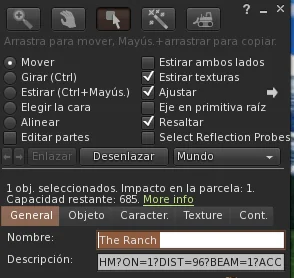
Rename HorseMonitor object in Second Life

Step 1 — Rename the Monitor Object

Rez the HorseMonitor object in your ranch and rename the object in Second Life. This name should be your ranch name.

Examples:

  • The Ranch
  • Airis Breedables
  • MERHORSE
  • Women Ranch

A clear ranch name helps HorseMonitor identify and display your ranch correctly across the web platform.

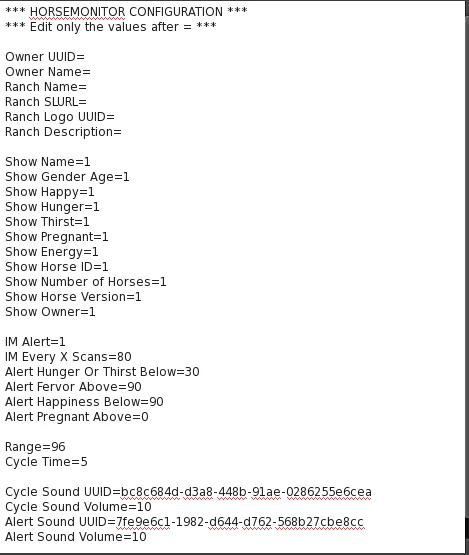
HorseMonitor CONFIG notecard

Step 2 — Edit the CONFIG Notecard

Open the CONFIG notecard inside the monitor and complete the values after the equals sign.

Owner UUID=
Owner Name=
Ranch Name=
Ranch SLURL=
Ranch Logo UUID=
Ranch Description=

The more information you complete, the better your public ranch profile will look on HorseMonitor.

HorseMonitor menu buttons

Step 3 — Reload Configuration

After saving the CONFIG notecard, touch the monitor and press:

RELOAD CFG

This reloads the notecard values and updates the monitor configuration without needing to replace the object.

HorseMonitor ON button

Step 4 — Turn the Monitor ON

Touch the monitor and press:

ON

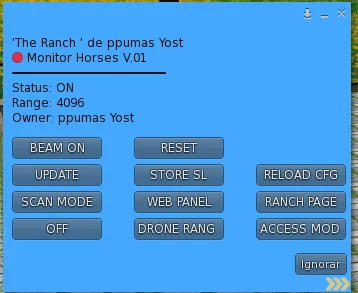
The monitor will start scanning horses and bundles inside range and send the data to HorseMonitor.

Main Menu Reference

Basic explanation of the most important monitor buttons.

ON

Starts the monitor and begins scanning animals inside range.

OFF

Stops monitoring. The web keeps the last data until the monitor reports again.

UPDATE

Forces a manual update cycle.

STORE SL

Stores Second Life location information used by the web panel and teleport links.

WEB PANEL

Opens your private HorseMonitor breeder panel.

RANCH PAGE

Opens your public ranch page on HorseMonitor.

RELOAD CFG

Reloads the CONFIG notecard after editing owner or ranch settings.

DRONE RANGE

Shows or adjusts the scan range depending on your monitor version.

ACCESS MOD

Access management tools for web panel access and future token functions.

Recommended Range

Use a scan range that fits your ranch size.

Small Ranch

64 m

Recommended for compact ranches with animals close to the monitor.

Medium Ranch

96 m

Recommended for most normal ranches.

Large Ranch

128 m or more

Use only if your monitor version and parcel layout support it correctly.

Common Problems

Quick checks before contacting support.

No Horses Detected

  • Check that the monitor is ON.
  • Check that horses or bundles are inside range.
  • Check that the monitor has permission and scripts are running.
  • Press UPDATE after changing range or position.

Ranch Not Showing Correctly

  • Check Owner UUID.
  • Check Owner Name.
  • Check Ranch Name.
  • Press RELOAD CFG after editing the notecard.

Images Not Appearing

HorseMonitor matches images using coat, breed and trait names. Names should be as close as possible to official Amaretto names.

Good examples:

  • White Andalusian
  • Dark Matter
  • Long
  • Pegasus
  • Wild Turkey Rainbow

If the name is too different, correct the manual data in the breeder panel or Focus page.

Panel Access

Private panel access starts from Second Life. Use the monitor menu and WEB PANEL option. Future access tokens are linked to the avatar UUID.

Contact Support

Send us the information needed to help you faster.

Support Request Form