HorseMonitor HorseMonitorWestern Ranch Network
170 today 137 online Last: Guest · web
Help / Manual

HorseMonitor V2 manual.

Basic operating manual for ranchers: startup, menu, configuration notecard, owner UUID and naming rules for correct horse detection.

1. Start the system

  1. Rez the HorseMonitor device in your ranch.
  2. Place it in a clear position with good range.
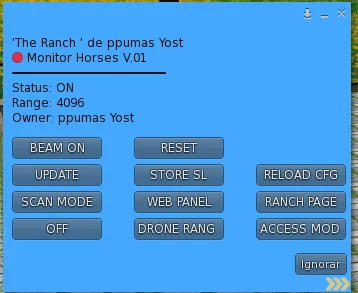
  3. Open the menu.
  4. Use RELOAD CFG after editing the configuration notecard.
  5. Press ON to start scanning.

2. Main menu

  • ON/OFF: starts or stops the monitor.
  • Range: controls detection radius.
  • Automatic: normal scan mode.
  • Find: locate detected horses.
  • Filter: horses, bundles or all.
  • Settings: reload configuration and owner data.

3. Configuration notecard

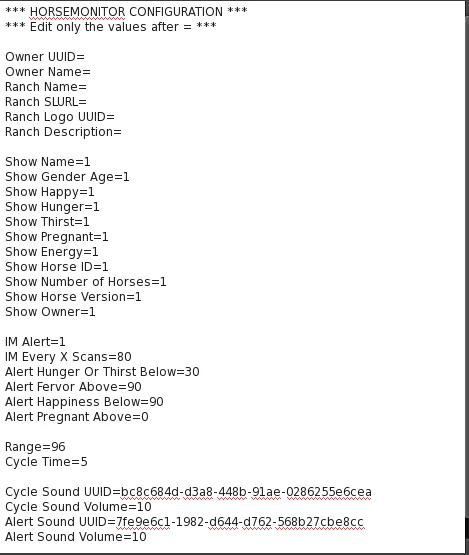
The configuration notecard must contain your correct rancher/owner UUID and any monitor-specific settings. After changing it, always use RELOAD CFG.

Use the same owner UUID that should appear in your public ranch profile URL.

4. Profile UUID

Your public ranch URL is created from your owner UUID:

/ranch.php?owner=YOUR-OWNER-UUID

This is the link you can place in your Second Life profile or Amaretto store.

IMPORTANT NAMING RULE

For best detection and image matching, the first horse name should respect the real Amaretto coat name. Example: use White Andalusian as the main coat/name and then add your personal label after it, such as Pegasus Female. The system can then match the coat correctly while still allowing your custom name.

5. Data rules

  • Monitor updates live stats: age, nourishment, energy, happiness, fervor, pregnancy, retired, location and last update.
  • Stand/kiosk future module will enrich traits: coat, eye, mane, tail, wings, horn, saddle, parents and children.
  • Final public source: horses and bundles only.